Pointer tool
The pointer tool  allows selecting and editing of contours, segments, points, components, etc. Click on the icon in the toolbar, or use the short cuts below.
Pro tips:
- The subtool
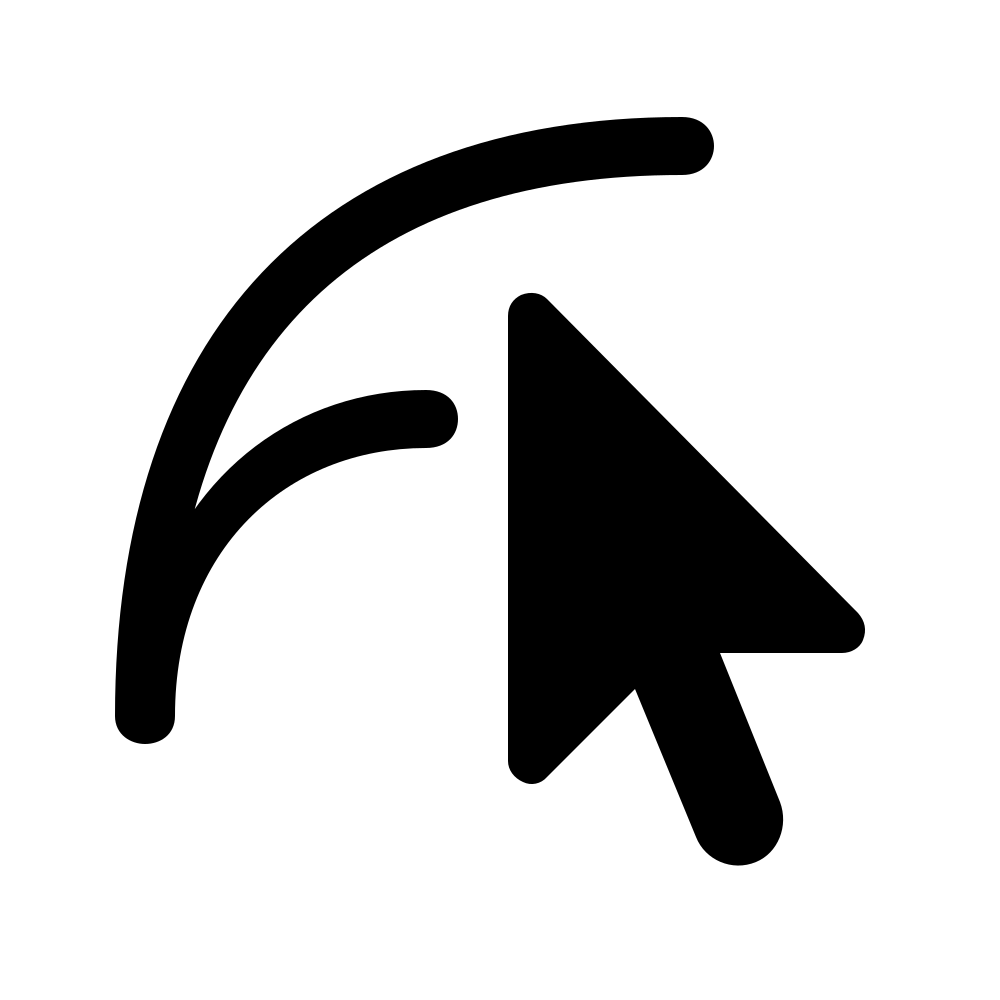 allows you to scale the curve according the move of the ON curve point you are dragging. Scaling edit tool does also affect the OFF curve points when you move an ON curve point.
- Use your own custom shortcuts to quickly switch between the two tools.
| Short cut |
Description |
| 1 |
Select tool |
Actions
Glyph selection (preview mode)
| Action |
Description |
| click on glyph |
Select glyph. |
| click on canvas |
Deselect glyph. |
| double click glyph |
Activate/deactivate editing mode. |
Segment selection
| Action |
Description |
| click |
Select segment. |
| ⇧ + click |
Add segment to selection. |
| click + drag (single segment) |
Move the selected segments. |
| ⇧ + click + drag (single segment) |
Move the selected segments with angle constrained to multiples of 45°. |
Point selection
| Action |
Description |
| click + drag |
Select all points inside the selection marquee. |
Component selection
| Action |
Description |
| click + drag |
Move clicked component |
| double click selection |
Dialog: Add component(s) to the text string |